
Adding Users to the Role
To apply the access parameters set up for the role to a specific user you have to add the user to that role. This can be done easily. Switch to the “Report Users” tab, select the user you want, and in the bottom part of the window select the “Roles” tab:

Press the «Refresh» button to refresh the list of roles and to be able to see BAT-role you have recently created:

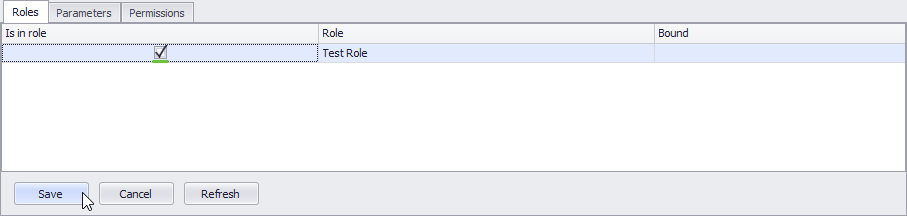
To add the user john to the role “Test Role”, simply check the box in the “Is in role” column near this role and press «Save»:
Now if you log in to the report module under the user john, you won’t see “Customer” dimension, because no hierarchy from that dimension is included in the list of visible hierarchies for the TestRole.